VaultPress v.1.3 includes hotfix for WordPress vulnerabilities

Today, we released an update to the VaultPress plugin (1.3) to protect against recently identified security vulnerabilities in WordPress. You can read more about those vulnerabilities and the release of WordPress 3.3.2 here.

To be proactive, we pushed version 1.3 of the VaultPress plugin to all sites for which we have credentials. Those sites are now protected against the vulnerabilities and we sent customers a note just to let them know we’ve taken action and that their site is safe.

We’ve notified all site owners if we were not able to update their plugin to close the vulnerabilities. If you received a notice, please download version 1.3 of the plugin and install it to protect your site. Better yet, enter your site’s FTP credentials in the VaultPress dashboard. In your dashboard, click Configure FTP, MySQL, & SSH to enter the FTP credentials. When you’ve got that done, send us a note and we’ll update your plugin for you. Providing your FTP credentials will allow us to push VaultPress plugin updates to your site automatically, which will keep your site protected against known vulnerabilities.

Remember, to keep your site secure, keep WordPress, your plugins, and themes up-to-date. All users accessing your WordPress admin area should use strong passwords and make sure you delete plugins and themes that you’re no longer using.

Learn more about how VaultPress can protect your content, theme, plugin, and site settings and customizations. Contact us with questions, or sign up to protect your site.
Posted in Announcements, Features, Security | 2 Comments

Diff viewer allows you to see code changes in potential threats

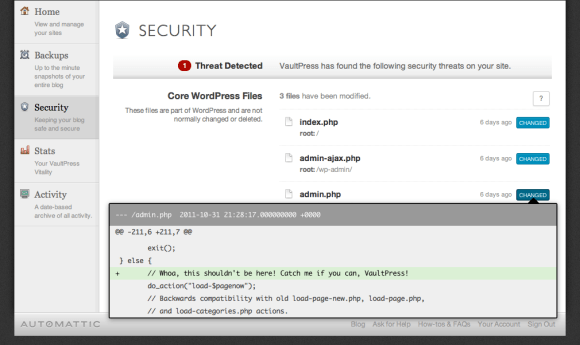
As part of a recent series of improvements to VaultPress, we’ve implemented a Diff Viewer that will help you decide whether or not threats identified in Core WordPress files are bona fide.

To see the Diff Viewer in action, click on the Security tab of your VaultPress dashboard. The Diff Viewer compares files based on the version of WordPress you have installed. If you have WordPress 3.3 installed, the Diff Viewer compares your current files to the Core WordPress files contained in version 3.3 and highlights any differences. In this example, VaultPress detected three Core WordPress Files that have been modified. To see the modifications, click on the blue Changed button. The Diff Viewer will pop up, and take you to the exact code that has been modified, which will help you decide whether or not the threat is real, or a false positive:

If the threat is real, you can ask a Safekeeper for help.

Learn more about how VaultPress can protect your content, theme, plugin, and site settings and customizations. Or you could delight us, and sign up to protect your site.
Posted in Features | Comments Off on Diff viewer allows you to see code changes in potential threats

Toolbar notifications alert you to threats immediately

At VaultPress, we’re continuously taking snapshots of your site and we could discover a threat at any time. We’ve implemented toolbar notifications to alert you to threats and vulnerabilities so you can take care of them right away. Note that toolbar notifications are in place for Premium and Enterprise customers running WordPress version 3.3+ and the latest version of the VaultPress plugin, v. 1.2.9.

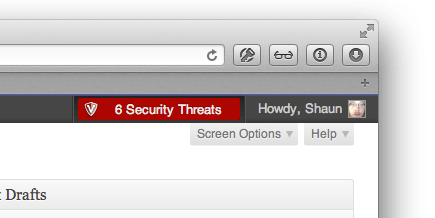
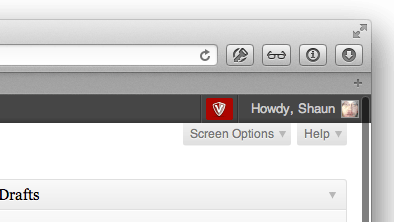
Here’s what your WordPress dashboard toolbar will look like if you have VaultPress installed and we’ve detected a security threat or vulnerability on your site. You can see the VaultPress shield, rampant on a small field of red, and know that we’ve got your back:

You can hover over the red VaultPress shield to find out how many threats and / or vulnerabilities that we’ve detected:

To review and act on a threat, click on the notification. We’ll whisk you off to the Security tab in your VaultPress dashboard to learn more about the threat(s) and take immediate action:

Learn more about how VaultPress can protect your content, theme, plugin, and site settings and customizations. Or you could delight us, and sign up to protect your site.

Posted in Features | Comments Off on Toolbar notifications alert you to threats immediately

Threat or no sweat? VaultPress security scanning alerts you to threats you can repair immediately

At VaultPress, we recently improved our security scanning and notifications feature to alert you to site threats and vulnerabilities and allow you to repair them right away. Log in to your VaultPress dashboard and click on Security to check out the security scanning results for your site and take action to keep your site safe and sound. Note that this feature is in place for Premium and Enterprise Subscribers.

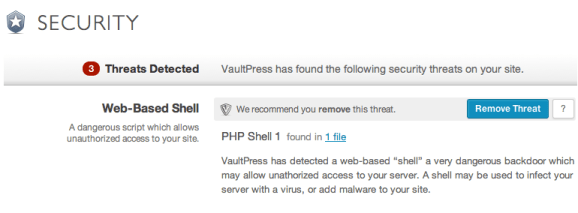
Here’s a sample of what you might see on logging in to your VaultPress dashboard. Threats are listed by category. Under Web Based Shell, the first category listed below, there’s a possible threat called PHP Shell 1 along with a description. You can choose to click on the blue Remove Threat button to remove this threat from your site:

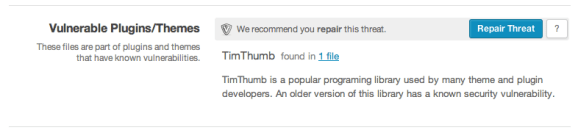
Here’s a sample of what you’ll see if your site has the Tim Thumb vulnerability:

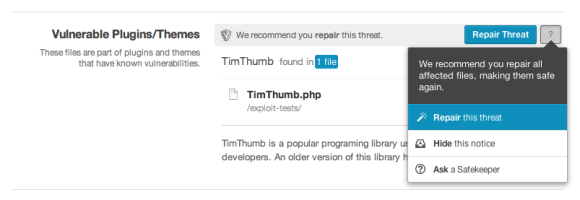
Clicking on the gray question mark reveals three actions you can take. You can:

  • repair the threat,
  • hide the notice, or
  • ask a safe keeper for more information.

In this case, you’d definitely want to click on the Repair Threat button to ensure your site is protected from this vulnerability:

Because we want to be sure that we’re taking every precaution to keep your site safe, you may see some false positives listed under threats. If you have any questions or need guidance, please contact a safekeeper for help.

Learn more about how VaultPress can protect your content, theme, plugin, and site settings and customizations. Or you could make our day, and sign up to protect your site.

Posted in General | Comments Off on Threat or no sweat? VaultPress security scanning alerts you to threats you can repair immediately

Full restore or file restore? VaultPress leaves the choice up to you

If the bad guys hack your site, you might need to do a full restore, and VaultPress customers know we’ve got their back there. But, what if you’ve accidentally modified your theme? What if an updated plugin starts to misbehave and you’d like to revert to the previous version? VaultPress now allows you to choose what you need to restore and nothing more, to help you get your site and your revenue stream back up and running as quickly as possible.

Let’s say you’ve accidentally messed up your theme. It’s so messed up, it would take a room full of themers a lifetime to make right. VaultPress backs up your themes and plugins once a day, so let’s look at how you can use a recent VaultPress backup to restore your theme.

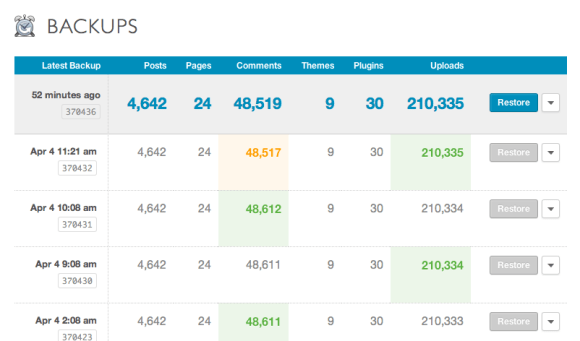
Log in to your VaultPress dashboard and click on the Backups tab to see a list of your site’s most recent backups:

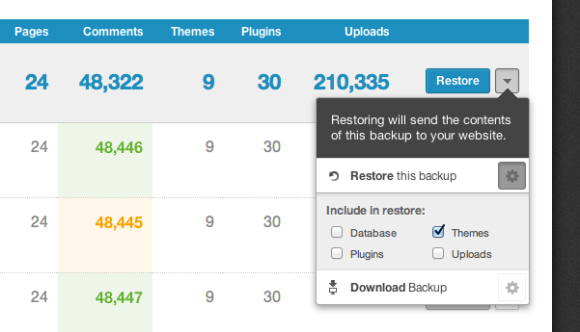
Perfect! The most recent backup was 52 minutes ago, before you accidentally invoked themepocalypse. To see your restore options, click on the gray arrow on the far right-hand side of the screen. You can see that you have the option to download a full site backup, do a full restore, or restore any combination of your database, themes, plugins, and uploads. To restore your theme, uncheck the boxes next to database, plugins, and uploads, and then click on the Restore this backup text:

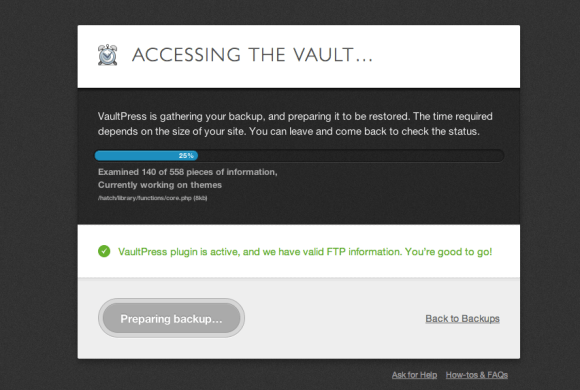
Next, VaultPress will start to prepare your theme for restore. The time required for this step depends on the size of the files.

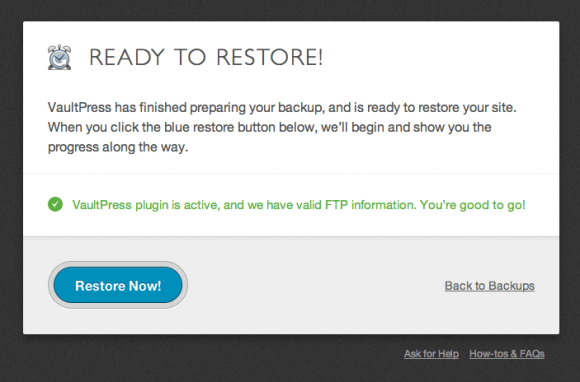
Once VaultPress is done preparing the files, you’ll see a confirmation message. Note that VaultPress needs your FTP information on file to be able to access your site and upload the files you’ve chosen to restore. If in this instance, we didn’t have your FTP information on file, you’d see an error message asking you to supply your FTP details to complete the restore process. Since we’re all set, you can click on the blue Restore Now button:

Once we’ve uploaded the backup theme files to your server, you’ll see this success message, confirming that you reversed themepocalypse. We’ll also send you an email confirmation once the files are restored.

Learn more about how VaultPress can protect your content, theme, plugin, and site settings and customizations. Contact us with questions, or you could make our day, and sign up to protect your site.

Posted in General | Comments Off on Full restore or file restore? VaultPress leaves the choice up to you